The Claude Cowork
Sales System
Turn Claude into your daily sales co-worker.
A complete system for using Claude Cowork to prep calls, update deals, and draft emails — saving you 1-2 hours per day.
10 min setup
to first call prep
15 sections
step-by-step
1-2 hrs saved
per day

Left: generic chat. Right: Cowork with your deal context loaded.
What is Claude Cowork?
The One-Sentence Version
Claude Cowork is a mode inside the Claude Desktop app that reads and writes files in a folder on your computer -- so instead of chatting about your work, it works on your work.
Cowork always asks before acting. It will never change, delete, or create files without showing you a plan first. You review and approve every step.
Why Context Is Everything
You already know AI chatbots. You type a question, you get an answer, you copy-paste it somewhere. The output is generic because the AI knows nothing about your deals, your accounts, or your process.
The difference between useless AI output and output that actually moves deals forward is context. This guide is about building a context engine -- a structured file system that gives Claude everything it needs to know about your accounts, your conversations, your methodology, and your preferences. The folder structure, the naming conventions, the email routing, the context files -- that's the system. Cowork is just the engine that reads it.
Regular AI chat is like calling a smart friend on the phone. You describe your problem, they give you advice, you hang up. Next time you call, they've forgotten everything.
This system gives Claude a filing cabinet full of everything about your deals -- stakeholder maps, call notes, email threads, MEDDPIC scorecards, competitive intel. When you say "Prep me for my call with Acme," it already knows the deal, the people, the history, and what happened on the last call.
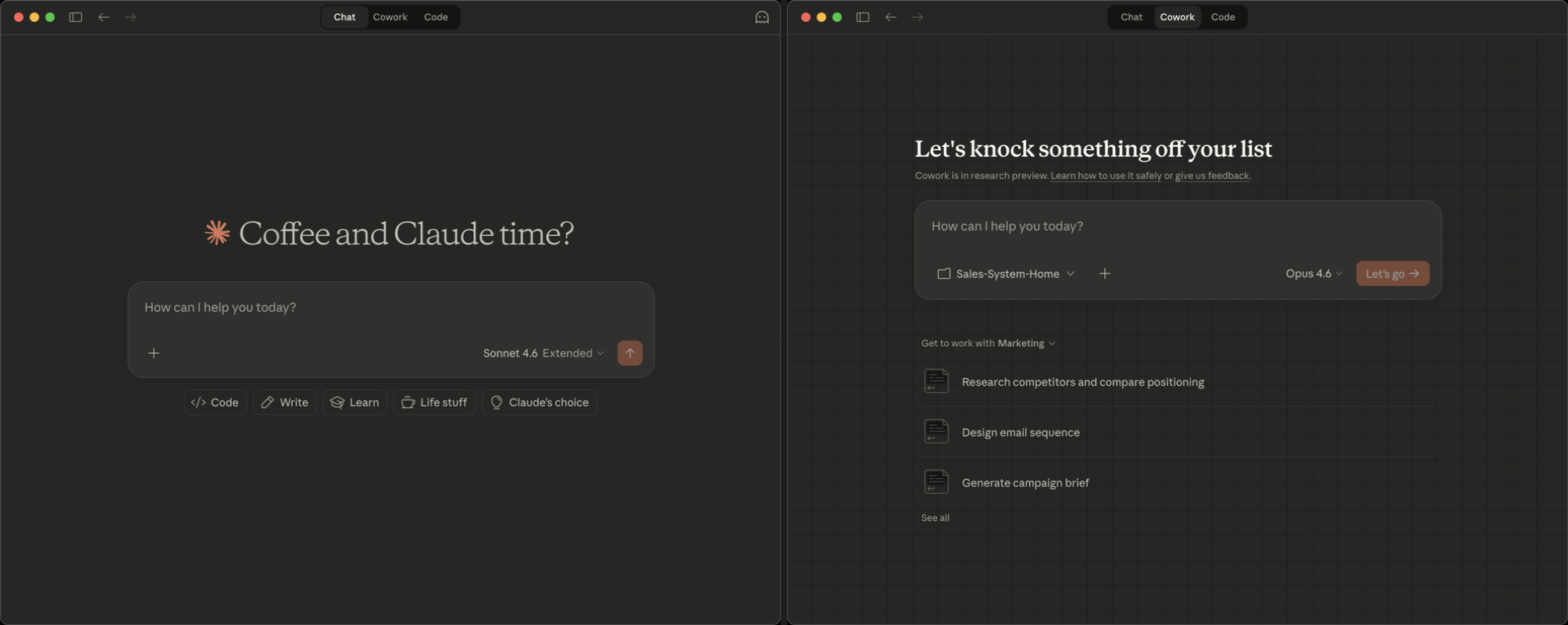
Chat vs Cowork comparison
Who This Guide Is For
This system works for any AE who wants Claude to actually know their deals. But it's especially valuable if:
- Your company is locked down. IT won't enable third-party connectors, you can't install random tools, but you can use Claude Desktop and your SharePoint/OneDrive folder. This system runs entirely on local files -- no APIs, no integrations required.
- You want a system that works regardless of what your company allows. Connectors come and go, IT policies change, but a well-organized folder with your deal context always works.
- You want to own your context. CRM data is structured but shallow. Your real deal intelligence -- the call where the CFO said "we're not renewing with the incumbent," the email thread where procurement revealed their timeline -- lives in conversations. This system captures and organizes that context so Claude can use it.
If your company does have connectors enabled (Salesforce, HubSpot, Gmail, Outlook, etc.), even better. The folder structure still gives Claude a place to write outputs and store context that doesn't live in your CRM. Section 10 covers how to connect email and other data sources.
How Cowork Works (The Basics)
When you open Cowork mode and point it at a folder:
- It reads your files directly. No uploading. No copy-pasting. If a file is in the folder, Cowork can read it.
- It follows your instructions automatically. Cowork has two levels of persistent instructions: Global instructions (set in Settings > Cowork -- apply to every session) and Folder instructions (set when you select a folder -- apply only to that folder). This is how you tell it who you are, how you sell, and what you expect.
- It plans before it acts. When you ask Cowork to do something complex, it shows you what it intends to do and checks in along the way. You can steer, adjust, or cancel at any point.
- It writes and updates files. Cowork doesn't just give you text to copy -- it creates new files, edits existing ones, and organizes information directly in your folder.
- It can browse the web. Need company research for a call prep? Cowork can look it up and save findings into your account files.
- It supports connectors and plugins. On Team and Enterprise plans, Cowork can connect to your CRM (Salesforce, HubSpot), email (Gmail, Outlook), calendar, Slack, and 30+ other tools. There's even a first-party Sales plugin with built-in skills for call prep, pipeline review, outreach drafting, and competitive intel.
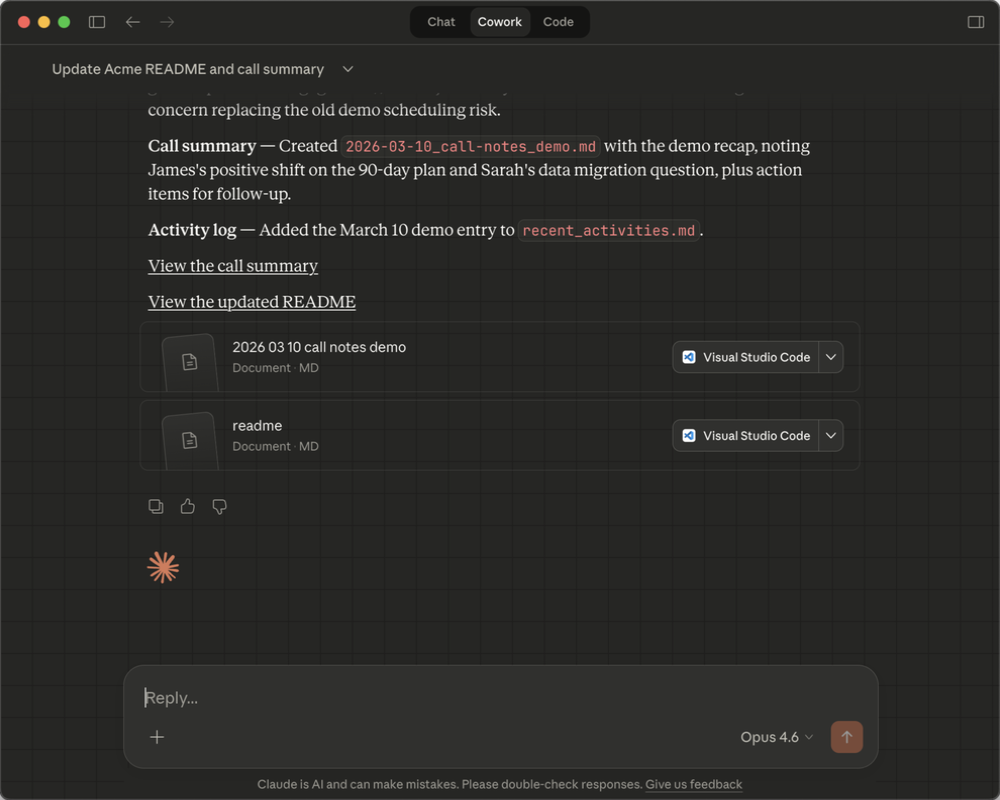
Cowork plan approval
What Cowork Can Do
| Capability | Example |
|---|---|
| Read files in your folder | Read your account brief, call notes, and deal tracker |
| Write new files | Create a call prep doc, draft a follow-up email, generate a meeting summary |
| Update existing files | Add new notes to an account file, update a deal stage, log a meeting |
| Browse the web | Research a prospect's company, find recent news, look up LinkedIn profiles |
| Follow persistent instructions | Global and folder instructions load automatically so it knows your role, style, and process |
| Execute multi-step tasks | "Prep me for my call with Acme tomorrow" -- researches, reads notes, writes prep doc |
| Connect to your tools (with setup) | Read CRM data, pull email threads, check your calendar, search Slack -- via connectors |
| Create polished documents | Generate Word docs, Excel sheets, PowerPoint decks, and PDFs using built-in skills |
What Cowork Cannot Do
| Limitation | Workaround |
|---|---|
| Remember past conversations | Everything important goes into files. If it's in the folder, Cowork knows it. If it's not, it doesn't. That's why this system exists. |
| Access files outside the granted folder | Keep everything you want Cowork to use inside Sales-System-Home |
| Make phone calls or join meetings | Cowork preps you before and processes notes after |
| Stay running if you close the app | The desktop app must stay open while Cowork is working |
The Key Mental Shift
Stop thinking of AI as a chat window you visit. Start thinking of it as a co-worker who lives in your filing cabinet. The better you organize that cabinet (your folder), and the more context you feed into it (emails, call notes, deal updates), the more useful the co-worker becomes.
That's what this guide builds: the filing cabinet, the context pipeline, and the habits that keep it current.
What You'll Need
Requirements
| Requirement | Details |
|---|---|
| Claude subscription | Claude Pro (individual), Team (for organizations), or Enterprise. All tiers include Cowork mode. Check claude.ai for current pricing. |
| Claude Desktop app | Download from claude.ai/download. Available for Mac and Windows. Cowork is a mode inside the app -- select it from the mode switcher at the top. |
| SharePoint/OneDrive (or any synced folder) | You need a local folder on your computer for Cowork to access. SharePoint synced via OneDrive is the most common for sales teams. Google Drive and Dropbox also work. |
| The template folder | The Sales-System-Home folder that came with this guide. You'll unzip it into your synced folder. |
| 30 minutes | For initial setup and customization. After that, you're running. |
What About My Phone?
Cowork runs on your computer, not your phone. The Claude mobile app has regular chat but not Cowork mode. You'll use Cowork at your desk (or laptop) during prep and follow-up time -- the blocks of your day where you're doing account work, not on calls.
What is Markdown?
You'll see files ending in .md throughout this system. That's markdown -- and it's simpler than it sounds.
Markdown is plain text with a few formatting shortcuts:
# This is a heading
## This is a smaller heading

- This is a bullet point
- Another bullet point

**This is bold text**

| Column 1 | Column 2 |
|-----------|----------|
| Data      | More data|
That's about 90% of what you'll need. Markdown is like writing a text message, but with a bit of structure so Claude can read it quickly and accurately.
Why markdown instead of Word docs? Cowork has built-in skills for Word, Excel, PowerPoint, and PDF files, so it can handle those formats. But for the context files in this system (account snapshots, call notes, stakeholder maps), markdown has advantages: the files are tiny (kilobytes vs. megabytes) and Claude reads them instantly. For your day-to-day deal context, markdown keeps things fast and simple.
Do I need to create .md files myself? No. You tell Cowork what you need and it creates the files for you. For example: "Create a new account folder for Acme Manufacturing based on the Sample-Account template" or "Write up my call notes from today's demo." Cowork handles the file creation, naming, and formatting. You can also edit files manually if you prefer, but you never have to.
Quick Start (10 Minutes)
Follow these steps in order. By the end, you'll have Cowork reading your sales system and ready to work.
Step 1: Download and Install Claude Desktop
Go to claude.ai/download and install the app for your operating system (Mac or Windows). Sign in with your Claude account.
If you don't have a Claude account yet, sign up at claude.ai. You'll need a Pro, Team, or Enterprise subscription -- the free tier does not include Cowork.
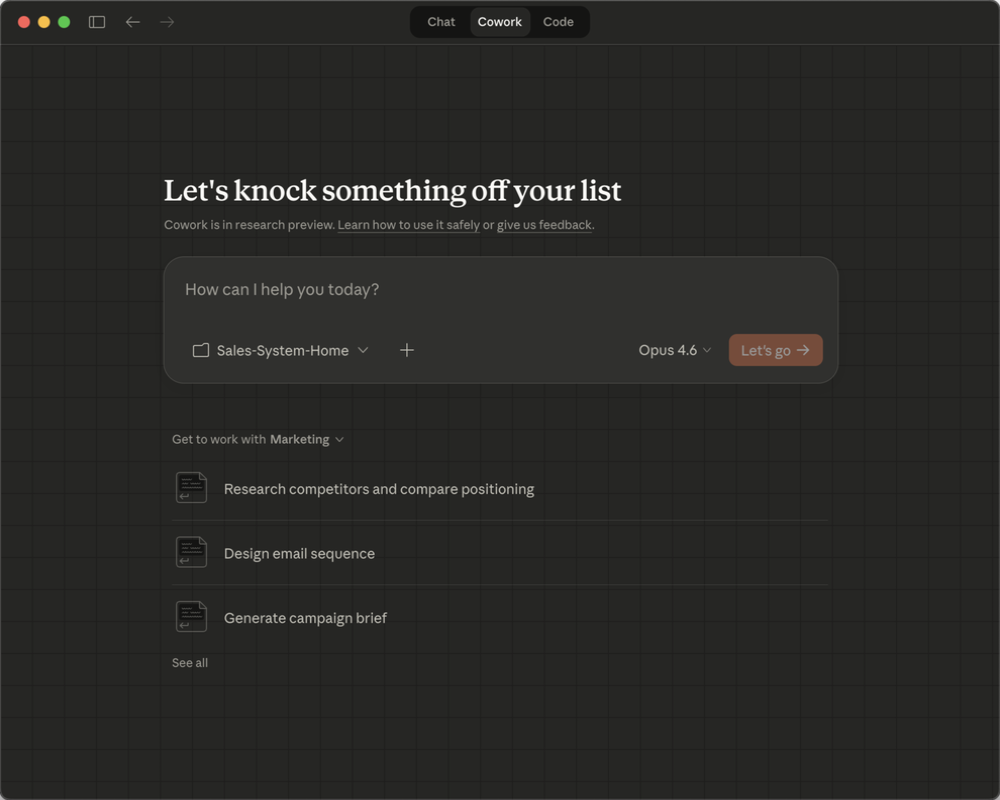
Cowork mode tab
Step 2: Unzip the Template Folder
Take the Sales-System-Home.zip file that came with this guide and unzip it into your SharePoint/OneDrive synced folder.
How SharePoint sync works (30-second version): When your IT team sets up SharePoint, you can sync a document library to your computer via OneDrive. This creates a local folder -- usually somewhere like C:\Users\YourName\OneDrive - Company\Sales-System-Home on Windows or /Users/YourName/OneDrive - Company/Sales-System-Home on Mac. Changes you make to files in this local folder automatically upload to SharePoint. Changes your teammates make in SharePoint automatically download to your computer. Cowork reads and writes to this local folder, which means your updates flow to SharePoint without any extra steps.
Not on SharePoint? Drop the folder into any synced location. Google Drive: Install Google Drive for Desktop, sync the folder locally, and point Cowork at the local copy. Dropbox: Same idea -- sync locally, point Cowork at it. Even a plain local folder works. SharePoint just gives you the team-sync benefit.
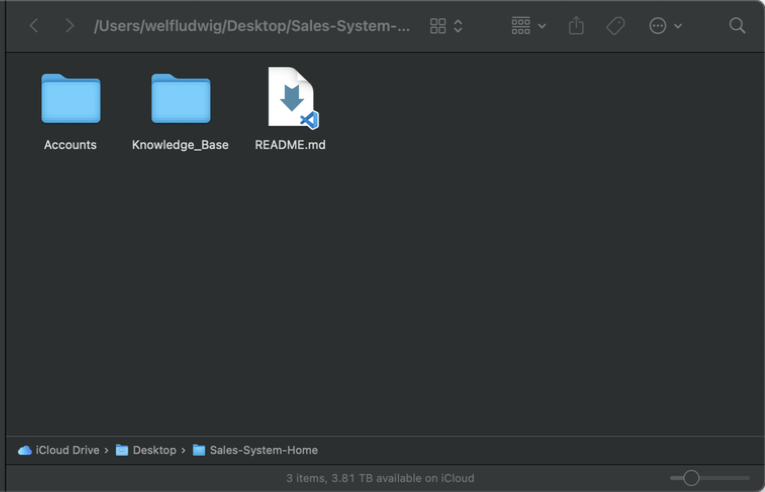
Sales-System-Home in OneDrive
Step 3: Open Cowork Mode
Open the Claude Desktop app. At the top, you'll see tabs or a mode selector. Switch from Chat to Cowork.
Don't see a Cowork tab? Cowork is currently in research preview. To enable it: open Claude Desktop, go to Settings (gear icon) → Feature Previews → toggle on Cowork. If you still don't see it, make sure your app is updated to the latest version.
Claude Desktop Cowork tab
Step 4: Grant Folder Access
Cowork will ask you to select a folder to work with. Navigate to your Sales-System-Home folder and grant access.
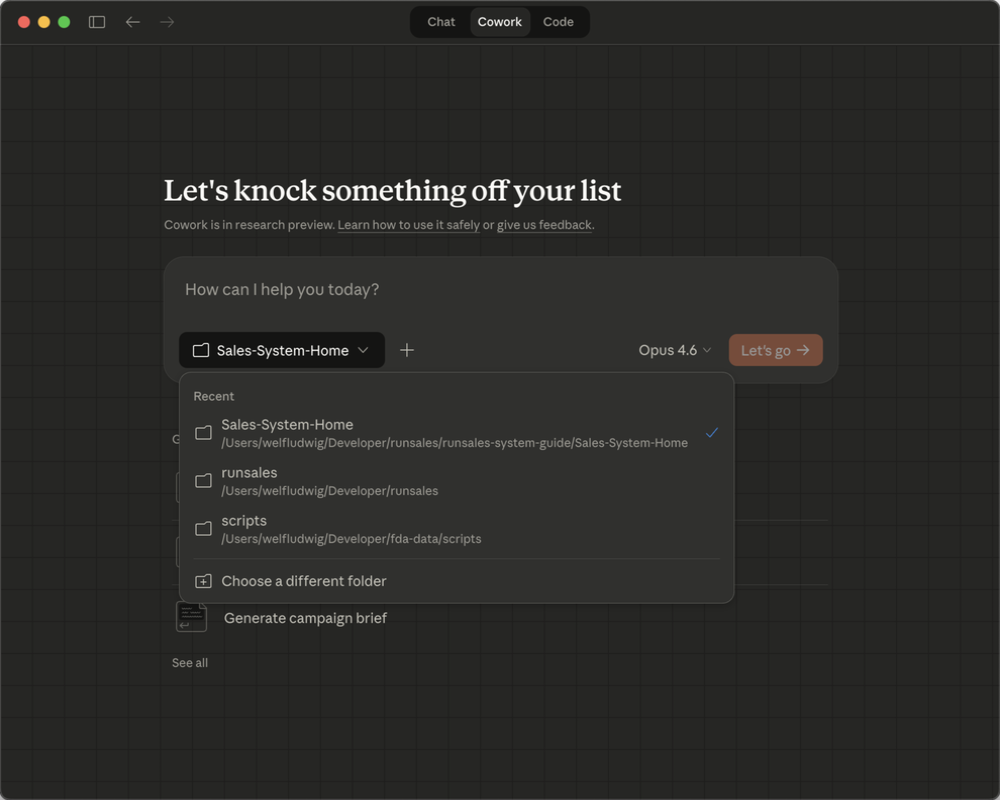
Folder access dialog
Step 5: Set Your Folder Instructions
Here's the key thing: Cowork lets you set folder instructions that load automatically every time you start a new session in this folder. When you select your Sales-System-Home folder, you'll see an option to add instructions for that folder. Paste in your sales context -- who you are, what you sell, how you want Claude to behave.
You can also set global instructions (Settings > Cowork) that apply to every session regardless of which folder you open. Section 4 walks you through what to put in your instructions -- that's the single most important thing you'll do.
Step 6: Verify Setup
Type this into Cowork:
List the folders and files you can see in my sales system.
Cowork should respond with a list of everything in your Sales-System-Home folder -- the Accounts folder, Knowledge-Base folder, and all the template files.
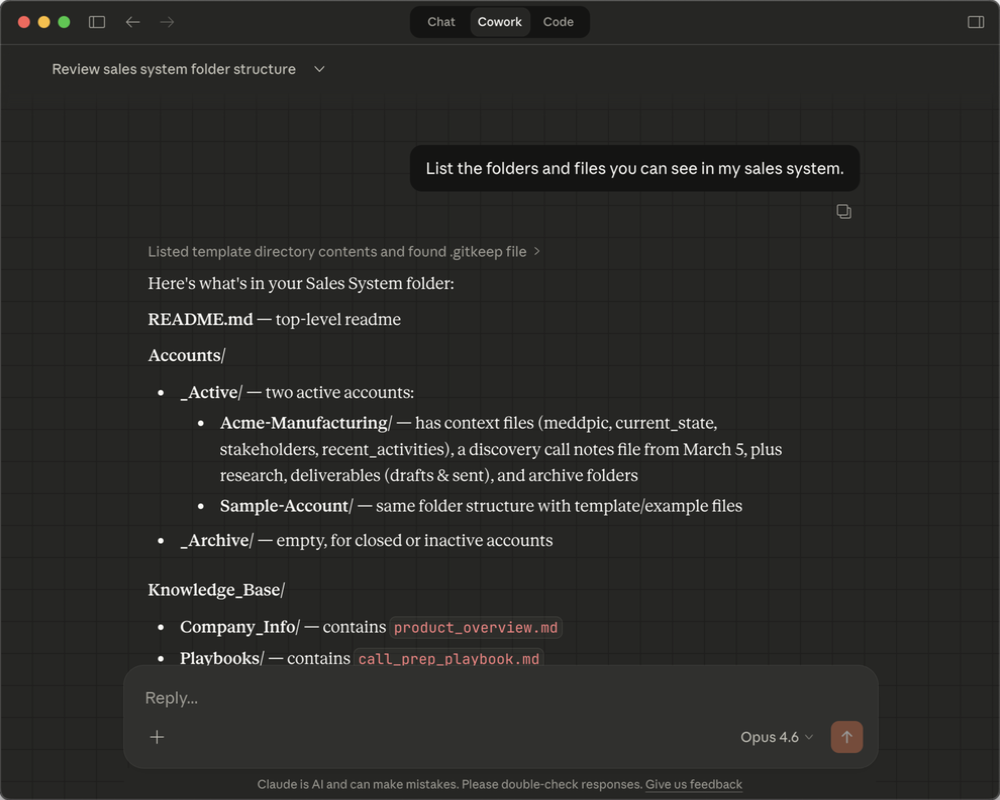
Cowork file listing
If Cowork can see your files, you're set up. If it can't, check that you granted access to the correct folder (see Troubleshooting, Section 15).
Step 7: Create Your First Account
Tell Cowork to set up your first real account:
I'm working a deal with [Company Name]. Create a new account folder for them based on the Sample-Account template in Accounts/_Active/.
Cowork will copy the template, rename the folder, and update the placeholder text in each file. You can then tell it about the deal and it will fill in the details.
You now have a working sales system. The next step is to set up your instructions (Section 4) -- that's where the real leverage comes from.
Before you move on: Section 4 (Instructions) is the most important section to customize. The templates are a starting point, but your folder instructions are what turn Cowork from a generic AI into your sales co-worker. Set aside 15 minutes to go through it.
Unlock the Full System
You've seen how it works. The remaining 12 sections cover everything you need to build and run the system daily.
Self-Starter
$39
one-time
- Full guide — all 15 sections
- Template folder (Sales-System-Home)
- PDF download for offline reference
- Call prep + post-call playbook files
- Annotated Cowork screenshots throughout
Instant access. Download everything.
Done With You
Custom
- Everything in Self-Starter
- 1-on-1 consulting session
- Custom folder instructions for your product
- Account folders for your real deals
- Ongoing support
Most teams are set up in one session.
Trusted by AEs at SaaS companies using Claude daily
Folder Instructions
Folder instructions are the single most important thing you'll set up in Cowork. They tell Claude who you are, what you sell, and how you want it to behave. Without them, every conversation starts from zero. With them, Claude already knows your product, your ICP, your objection-handling style, and the specific language that resonates with your buyers.
Think of it as onboarding a new sales rep — except this rep has perfect recall and never goes off-script unless you tell it to.
Three Ways to Level Up
Start with the guide. Go further when you're ready.
Self-Starter Guide
Learn the system. Build it yourself.
1-on-1 Consulting
Get set up with expert help in one session.
RunSales Plugin
AI-native sales OS — coming soon.
Coming Soon: RunSales Plugin
Everything in the guide — automated. An AI-native sales operating system that runs inside your workflow.
- 40+ built-in playbooks
- Signal scanning across channels
- Persona-matched email drafts
- Deal health scoring
- Pipeline intelligence dashboard
Set Up Your Sales System — With Expert Help
Tell me about your team and I'll scope a setup session.